
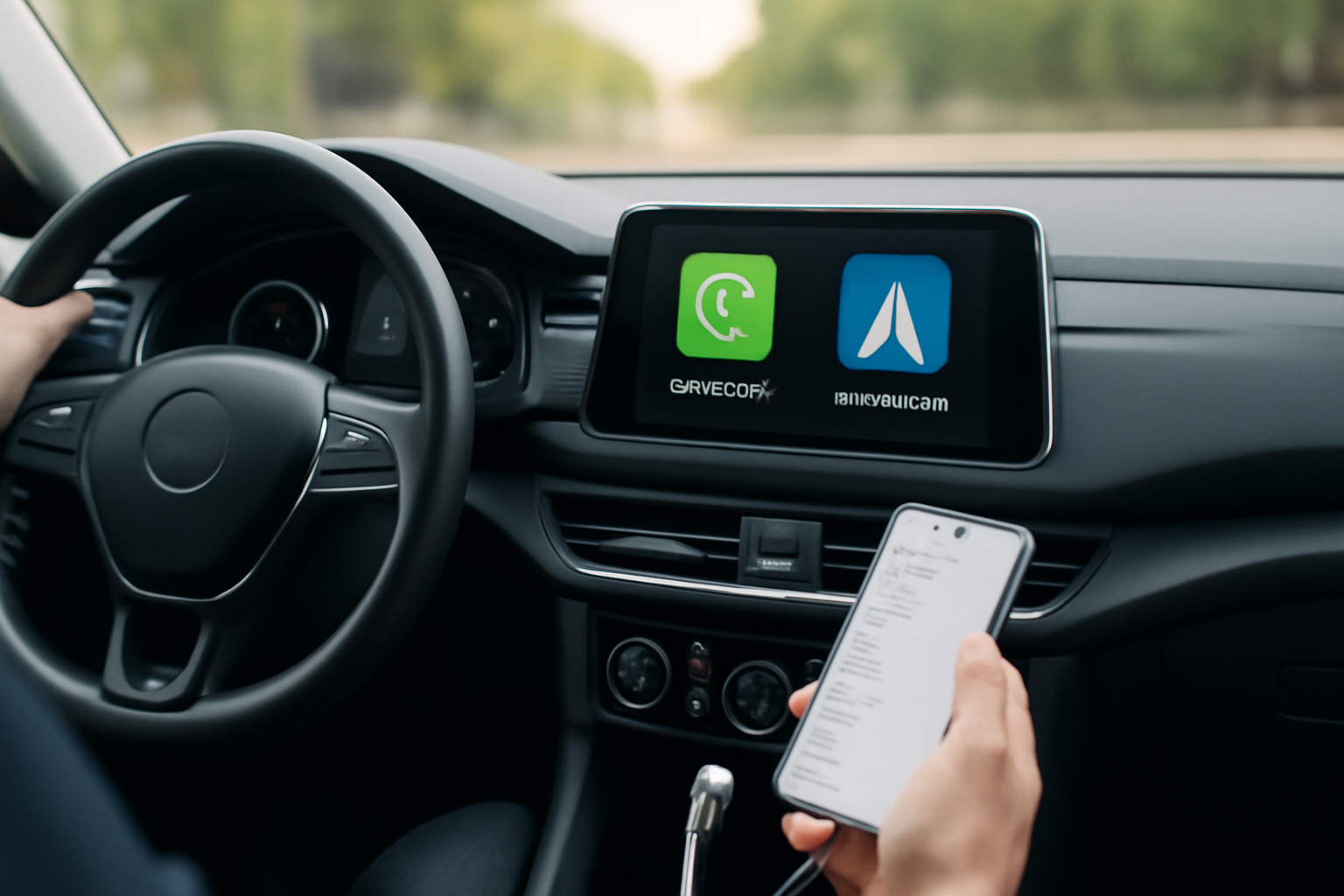
Apple CarPlay and Android Auto transform your car’s infotainment screen into an extension of your phone. You get navigation, music, calls, and messages through a familiar interface designed for safe use while driving. Most 2026 vehicles support both platforms, and setup takes just a few minutes.
Wired Connection Setup
Apple CarPlay
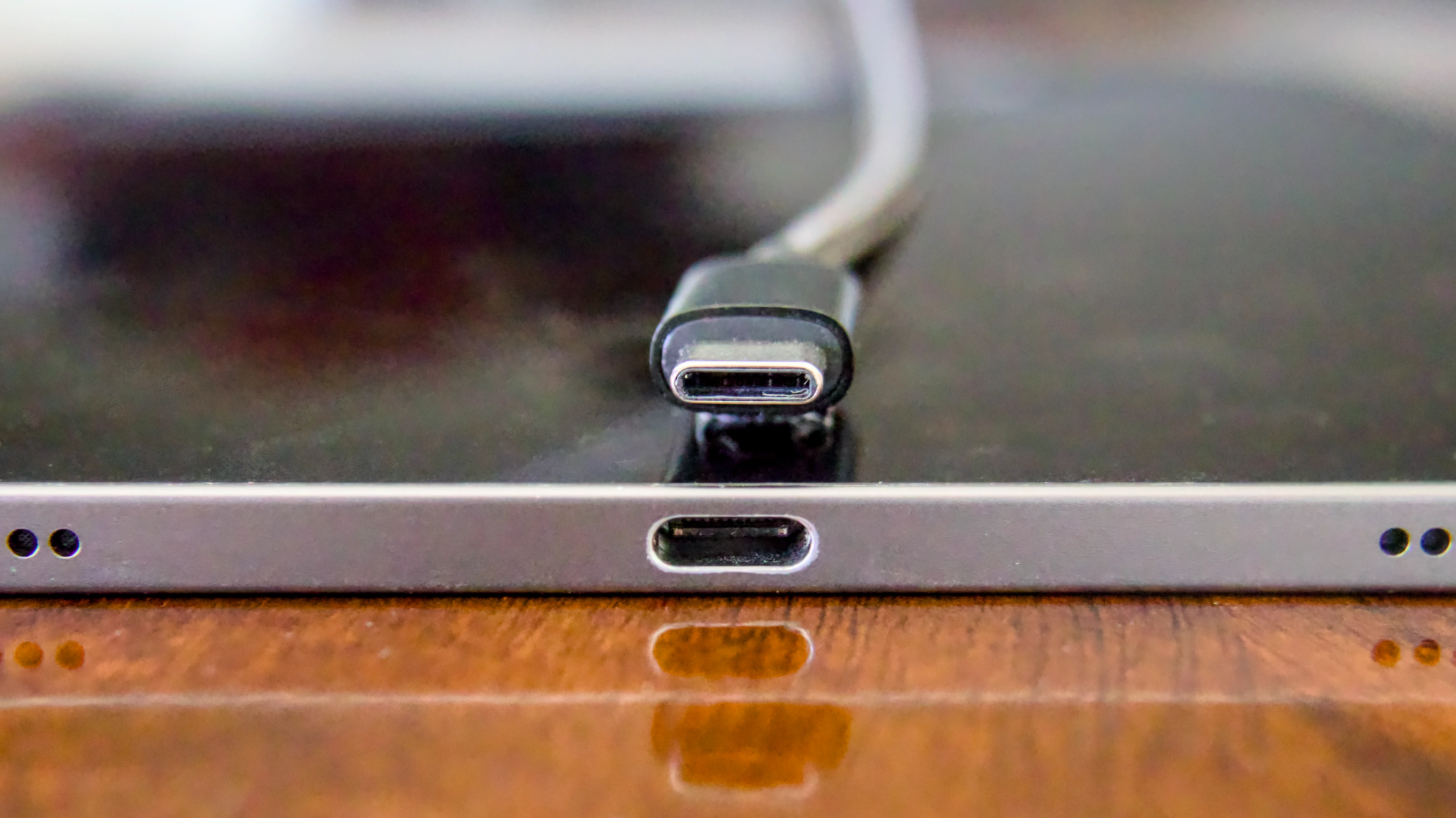
Connect your iPhone to the car’s USB port using a Lightning cable or USB-C cable (depending on your iPhone model). The first time you connect, you may need to unlock your phone and tap “Allow” when prompted to trust the device. CarPlay should launch automatically on the car’s display.

USB-C Cable for CarPlay
A quality cable ensures reliable connection for both CarPlay and Android Auto. Look for MFi certification for iPhone compatibility.
If it doesn’t launch automatically, navigate to your car’s infotainment settings and look for a “CarPlay” or “Smartphone Integration” menu. Select your phone from the list of available devices. Some vehicles require you to enable CarPlay in the phone connection settings before it works.
Android Auto
Connect your Android phone to the car’s USB port with a USB-C cable. The first time, your phone will prompt you to download the Android Auto app (on older phones) or enable the built-in Android Auto feature (on Android 10 and later). Accept the permissions for contacts, calls, and notifications.
The car’s display should switch to Android Auto within a few seconds. If it doesn’t, check the infotainment settings for a “Smartphone” or “Projection” option and select Android Auto.
Wireless Connection Setup
Wireless CarPlay and Android Auto connect via Bluetooth and Wi-Fi, eliminating the cable entirely. Most 2026 vehicles support wireless connections for both platforms.
For wireless CarPlay, go to your car’s Bluetooth settings and pair your iPhone. Once paired, select “Wireless CarPlay” in the infotainment settings. Your iPhone will connect automatically whenever you start the car.
For wireless Android Auto, open your phone’s settings, go to “Connected devices” or “Connections,” and find the Android Auto wireless option. Pair your phone with the vehicle’s Bluetooth, then select wireless Android Auto in the car’s infotainment menu.
Troubleshooting Connection Problems
CarPlay Won’t Connect
Verify that Siri is enabled on your iPhone (CarPlay requires Siri). Check that CarPlay is not restricted under Screen Time settings (Settings > Screen Time > Content & Privacy Restrictions > Allowed Apps). Try a different USB cable, as damaged cables are a common culprit. Restart both your phone and the car’s infotainment system.
Android Auto Won’t Connect
Clear the Android Auto app cache (Settings > Apps > Android Auto > Clear Cache). Make sure your phone’s software is up to date. Some Android phones require Developer Options to be enabled for USB connections. Try a different USB port in the vehicle if available.
Wireless Connection Drops
Wireless connections can be less stable than wired ones, especially in areas with heavy Wi-Fi interference. Ensure your phone’s Bluetooth and Wi-Fi are both enabled. “Forget” the vehicle from your phone’s Bluetooth settings and re-pair from scratch. Update your car’s infotainment firmware if an update is available.
Getting the Most Out of CarPlay and Android Auto
Both platforms support voice commands that let you keep your hands on the wheel. Say “Hey Siri” or “Hey Google” to send messages, make calls, start navigation, and control music. The voice recognition is significantly better through CarPlay and Android Auto than most factory voice systems.
Third-party apps that support CarPlay and Android Auto can be accessed through the app launcher on the car’s display. Popular supported apps include Spotify, Waze, Google Maps, WhatsApp, Audible, and various podcast players.
Vehicles Without Built-In Support
If your car doesn’t have factory CarPlay or Android Auto, aftermarket head units from brands like Pioneer, Kenwood, and Sony add full support. Installation typically takes 1 to 3 hours at a car audio shop and gives you a modern touchscreen with smartphone integration.

Aftermarket CarPlay Head Unit
Perfect for older vehicles without factory smartphone integration. Pioneer and Kenwood models offer excellent reliability.
Wireless CarPlay adapters are also available for vehicles that only support wired CarPlay. These small dongles plug into the USB port and convert the wired connection to wireless.

Wireless CarPlay Adapter
Converts wired CarPlay to wireless. Compatible with most 2016+ vehicles that have factory CarPlay.
This upgrade is particularly useful when shopping for reliable used vehicles or budget-friendly first cars that may lack modern connectivity features.
Frequently Asked Questions
Does CarPlay or Android Auto use my car’s data or my phone’s?
Both platforms use your phone’s cellular data for navigation, streaming, and messaging. Your car provides the display and speakers only. Data usage depends on which apps you run, with navigation and streaming being the most data-intensive.
Can I use CarPlay and Android Auto simultaneously?
No. Most vehicles support only one connection at a time. However, passengers can switch between a connected iPhone and Android phone by unplugging one and connecting the other.
Will CarPlay or Android Auto drain my phone battery?
Wired connections charge your phone while connected, so battery drain isn’t a concern. Wireless connections do consume more battery than a phone sitting idle, but most phones can maintain or slowly gain charge if the screen brightness is kept moderate.
What should I do if my infotainment system keeps freezing?
Infotainment system freezes can affect CarPlay and Android Auto functionality. Try restarting the system by holding the power button or consulting your vehicle’s manual for a reset procedure. If problems persist on specific models like the Mazda CX-5, a software update from the dealer may be required.
Leave a Reply